
Creating Mocks
UI Mocks
The control panel is the fastest way to create a mock while exploring an API shape, reproducing a bug, or trying an edge case. This page covers the mock form, how mocks created in the UI relate to file mocks, and what happens to them when Mocko restarts.
Open the control panel
The UI is enabled by default when you start Mocko:
Mocks are served on http://localhost:8080 and the panel opens on http://localhost:6625. The folder argument is optional; without it Mocko starts with no file mocks loaded, which is fine for UI-only sessions. Use --no-ui to disable the panel or -P to move it to another port.
Create a mock
Click New mock, choose a method, and enter a path. Paths use the same syntax as file mocks, so /users/{id} declares a path parameter you can use in the body. Pick a content type, write the response body, and save. The mock starts responding immediately.
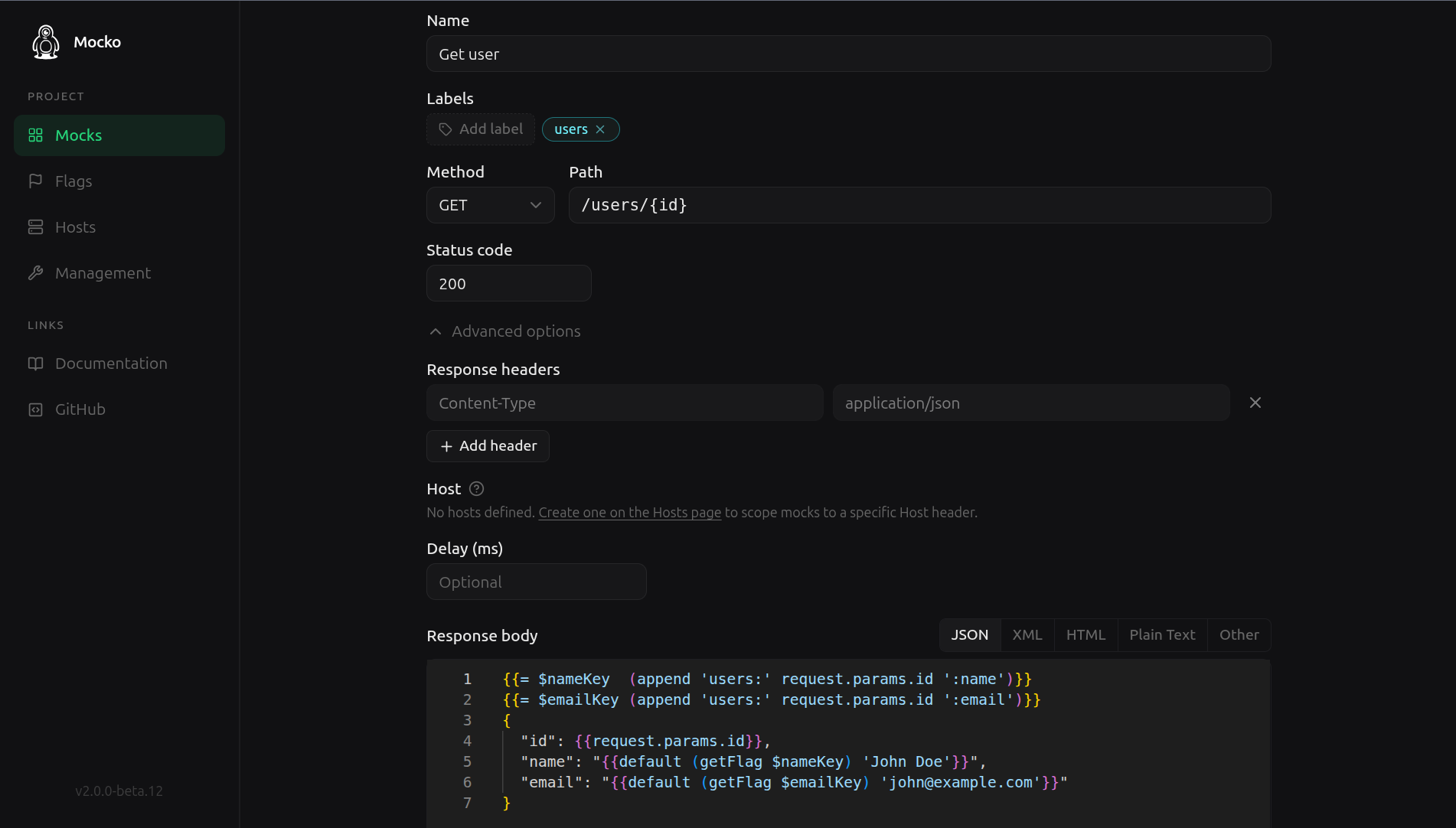
The body is a template with the same power as file mock bodies: everything on the Templating page works identically here. Under advanced options you can also set a status code, response headers, a delay, labels, and a host.
Working with many mocks
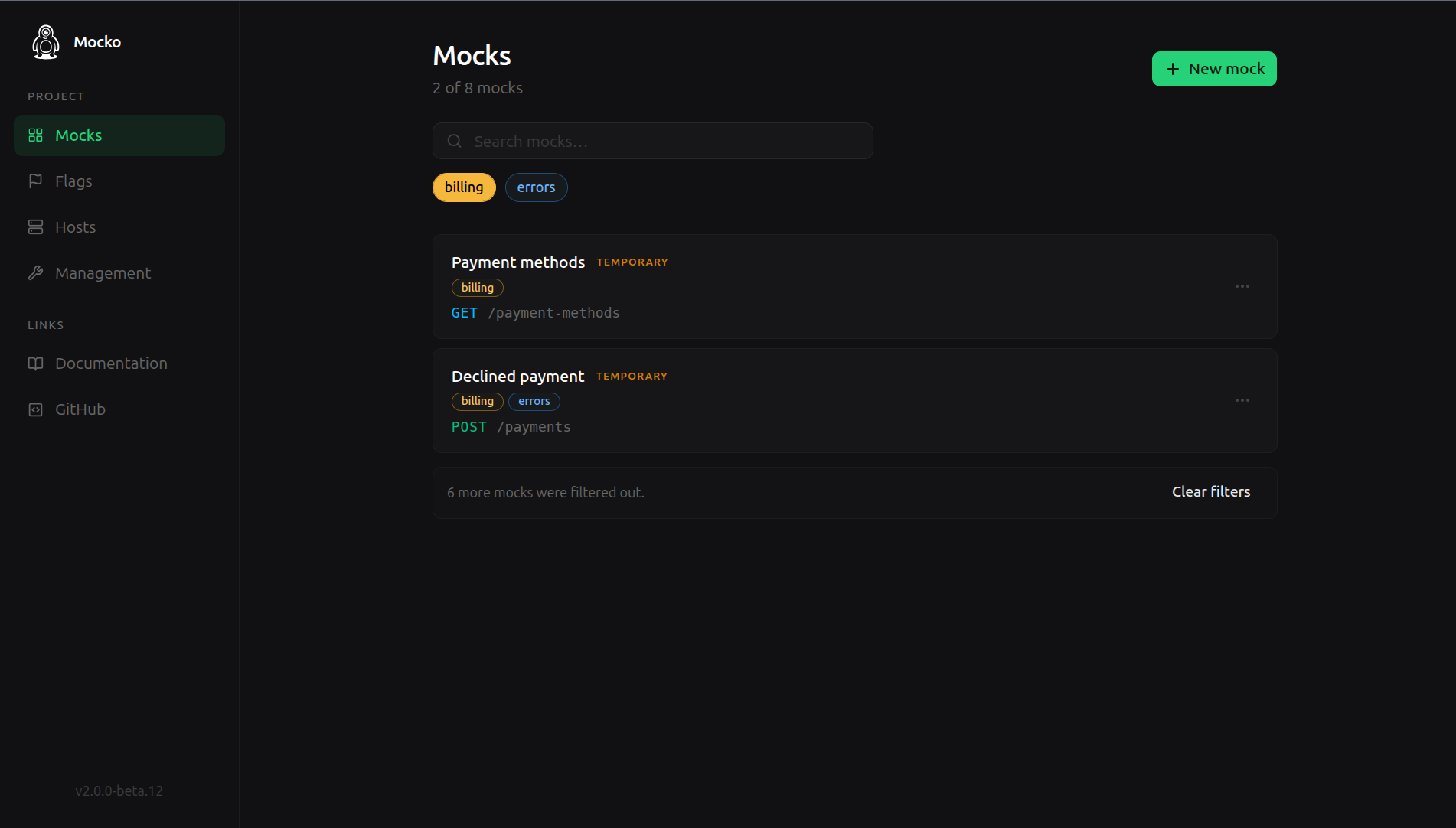
The mock list supports search and label filters, and the filters stay applied while you navigate into a mock and back. From the list you can also enable, disable, duplicate, and delete mocks. Duplicating is the quickest way to create a variation of an existing response, such as an error case for a route you already mock.
If a mock's template fails to render for a request, the panel shows the failure on the mock, so you do not need to tail the server logs to notice a broken template.
UI mocks and file mocks together
Mocks created in the panel are called deployed mocks, as opposed to file mocks loaded from .hcl files. Both kinds appear in the list, but file mocks are read-only in the UI: their source of truth is the file, and editing them there would be lost on the next reload. To change a file mock from the panel, duplicate it and edit the copy.
When a deployed mock and a file mock declare the same method and path, the deployed mock wins. This makes the UI a temporary override layer on top of your committed mocks, which is exactly what you want when reproducing a scenario locally. The full precedence rules are on How Matching Works.
Persistence
By default Mocko runs storeless: deployed mocks live in memory and disappear when the process stops. That keeps local sessions disposable. When Mocko runs with Redis, deployed mocks, hosts, and flags survive restarts, which is how shared instances are usually deployed.
Behavior details
- In storeless mode, deployed mocks are marked as temporary in the list, as a reminder that they reset on restart.
- The panel annotates routing overlaps: a mock that can never be reached because another one takes precedence is flagged, so conflicts between UI and file mocks are visible instead of silent. The rules behind those annotations are explained on How Matching Works.
Next
Mock bodies so far have been mostly static. Continue to Templating to make responses react to the request.